Blog7 min read
How to Turn One YouTube Video Into an X Thread
Turn one YouTube video into an X thread. Official X thread steps and character counting rules, plus a practical workflow using Repurpose AI.
- X Threads
- YouTube Repurposing
- Content Repurposing
- Social Posts
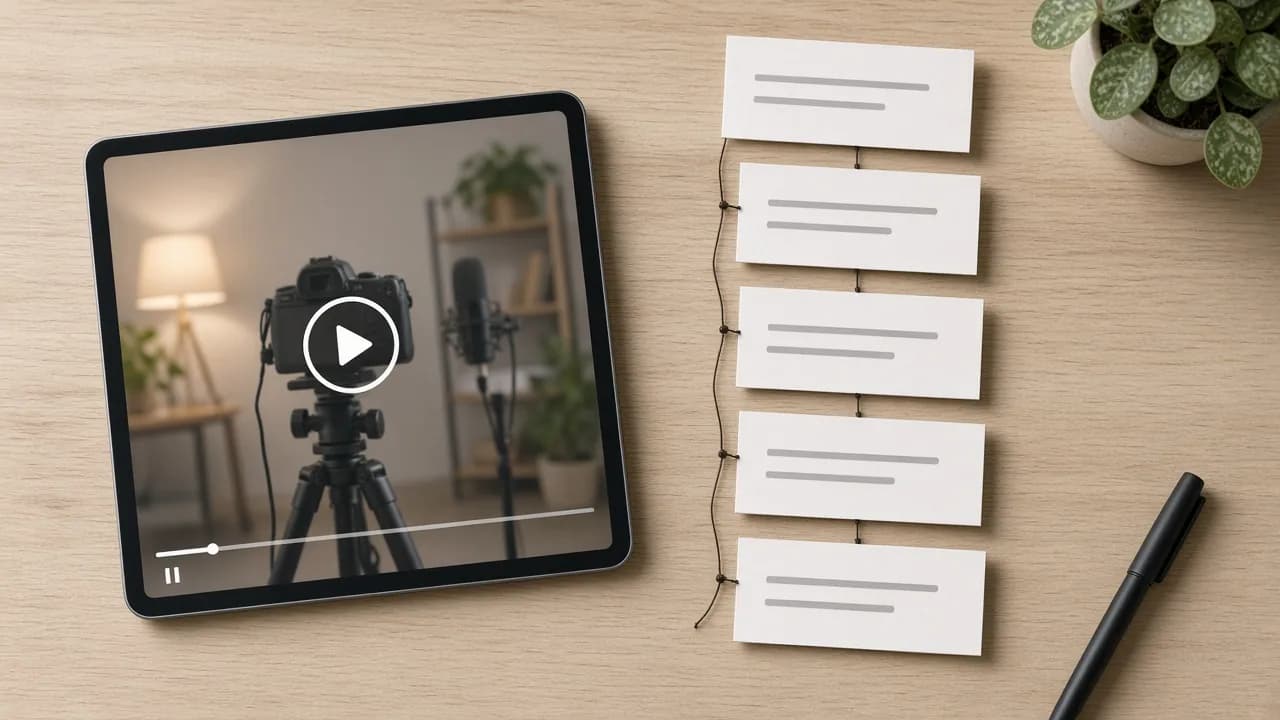
A finished YouTube video already holds the argument. X wants it in a different shape: a short run of connected posts that each make sense on their own. Cutting the transcript every 280 characters doesn't get you there, and neither does a "new video out" link with nothing around it.
This guide starts with X's own rules for threads and post length, then walks through pulling one argument from the video and writing it as a thread. For a work-tone feed update instead, see How to Turn One YouTube Video Into a LinkedIn Post. For a long-form article on your own site, see How to Turn One YouTube Video Into a Blog Post.
Why a Thread Is a Different Job Than a Video Description
A YouTube description supports the watch page: chapters, links, credits. A thread has to work for someone scrolling X who may never open the video. Each post is read on its own, and the first one decides whether anyone reads the second.
Repurpose AI's homepage lists X Thread as one of the places you can send a video: key ideas shaped into a readable X thread, with a clear opening and connected posts that you review and copy. That's the kind of thread this guide works toward.
Official X Rules That Shape a Thread
X's Help Center page How to create a thread on X defines a thread as a series of connected posts from one person. You compose the first post, tap the plus icon to add the next one, and tap Post all when the thread is ready. If a post goes over the character limit, the extra text is highlighted so you can edit before posting. After posting, you can add more from the thread detail page with Add another post.
The same page explains how threads show up: a thread of 2 or 3 posts generally appears connected by a line, and with 4 or more posts the thread is truncated behind a Show this thread option, so the first few posts need to be worth reading before anyone expands the rest.
X's developer documentation on counting characters sets the size of each post. Posts can contain up to 280 characters, emojis count as 2, every link counts as 23 characters because X wraps it with its t.co shortener, and media attached through the official apps counts as 0. X Premium subscribers can post up to 25,000 characters, but a thread written for everyone should assume 280.
X's automation rules also say you may not post duplicative or substantially similar posts on one account or across accounts you operate, and that you are responsible for actions taken by apps tied to your account. Don't paste the same thread twice or schedule near-copies of it.
Pick One Argument From the Video
A long video often makes several points. A thread works best with one argument and the steps or evidence behind it.
A quick test:
- What would someone on X still care about without watching?
- Which part of the video has a sequence: steps, reasons, mistakes, or a before and after?
- Can you state the point in one sentence?
If you can't answer the third question, narrow the topic before you write.
Pull a Summary and a Transcript First
If you write the thread from memory, numbers get rounded and steps go missing, so pull the source text first.
- Get the shape fast. Repurpose AI's YouTube Video Summarizer takes a pasted link and returns a concise summary with key points. Captions give the most accurate results.
- Check the exact wording. Use Show transcript on YouTube when captions exist, or generate one with the YouTube Transcript Generator from a YouTube link or an uploaded file.
- Mark the lines you will quote or paraphrase, so every post traces back to something you actually said.
Repurpose AI accounts start with 5 free credits and no credit card, shared across the tools. For the choice between the two, see YouTube Transcript vs Summary.
Write the First Post So It Stands Alone
On a timeline, the first post may be the only one people see before Show this thread, so it has to carry the thread. State the point or the problem in plain words, and tell readers what the next posts will give them. Skip "In my latest video I talk about...", which tells them nothing.
Keep the claim honest. If the video shows one example, don't promise a guaranteed result.
Give Each Post One Idea
A transcript runs in playback order, asides and repeats included, while a thread should follow the order a reader needs.
- One step, reason, or example per post
- Each post readable without the one before it, as far as you can manage
- Spoken filler cut, gestures like "this part here" replaced with what you meant
- Numbering such as 1/6 only if it helps; it costs characters
Write each post in the composer or check it against the 280 limit, and remember a link takes 23 of those characters.
Where the Video Link and Clip Go
A thread about your video should still point back to it. You can put the link in the last post, after the argument has landed, or in the first post when the video itself is the point. Either way it costs 23 characters.
If you want the thread to show the video too, attach a clip. The homepage's X Video destination makes a widescreen 16:9 clip for X from the same source, and the YouTube to Video Clips tool renders square or widescreen MP4s with captions. Media from the official apps doesn't count toward the character limit. For format choice, see Which YouTube Clip Format to Use.
Edit for Voice and Post It Yourself
Repurpose AI's homepage offers Keep Your Voice: turn it on so generated content learns how you talk from your video and writes in the same way. Use the draft as a start, then read every post out loud and cut what you wouldn't say.
Repurpose AI gives you the thread to review and copy. You post it on X yourself, which keeps you inside X's rules about automation and duplicate posts and lets you fix anything the composer highlights before you tap Post all.
How Repurpose AI Fits the Thread Pass
There is no dedicated YouTube-to-thread landing page on the live site today. The shipped path is the homepage flow: paste a YouTube link or upload a video, then pick X Thread, and optionally X Video, as destinations. Each selected platform uses 1 credit, and each clip render uses 1 more.
A practical split:
- YouTube Video Summarizer or YouTube Transcript Generator for the source map
- Homepage X Thread destination, with Keep Your Voice if you want it, for the draft
- X Video or YouTube to Video Clips if the thread needs a clip
- Your own edit, then posting from the X composer
Browse the rest of the toolkit from /tools when you still need titles, descriptions, or Shorts.
Mistakes That Waste a Good Video
- Splitting the transcript every 280 characters and calling it a thread
- A first post that only says a new video is out
- Several ideas crammed into one post
- Forgetting that each link costs 23 characters
- Posting the same thread again, or near-copies on other accounts you run
- Claiming results or numbers the video didn't show
Final Check
The thread is ready when the first post makes sense alone, each post carries one idea, every post fits in 280 characters with its link counted, the video link sits where it helps, and the wording sounds like you.
Start from a summary or transcript, open the homepage to draft an X Thread, edit it, and post it from X. For more free YouTube tools in one place, use /tools.