Blog5 min read
How to Turn a Long YouTube Video Into Shorts
Cut Shorts from a long YouTube video that make sense on their own. Find the right moments, frame them for 9:16, add captions, and link every Short back to the full video.
- YouTube Shorts
- Content Repurposing
- Video Editing
- YouTube Creators
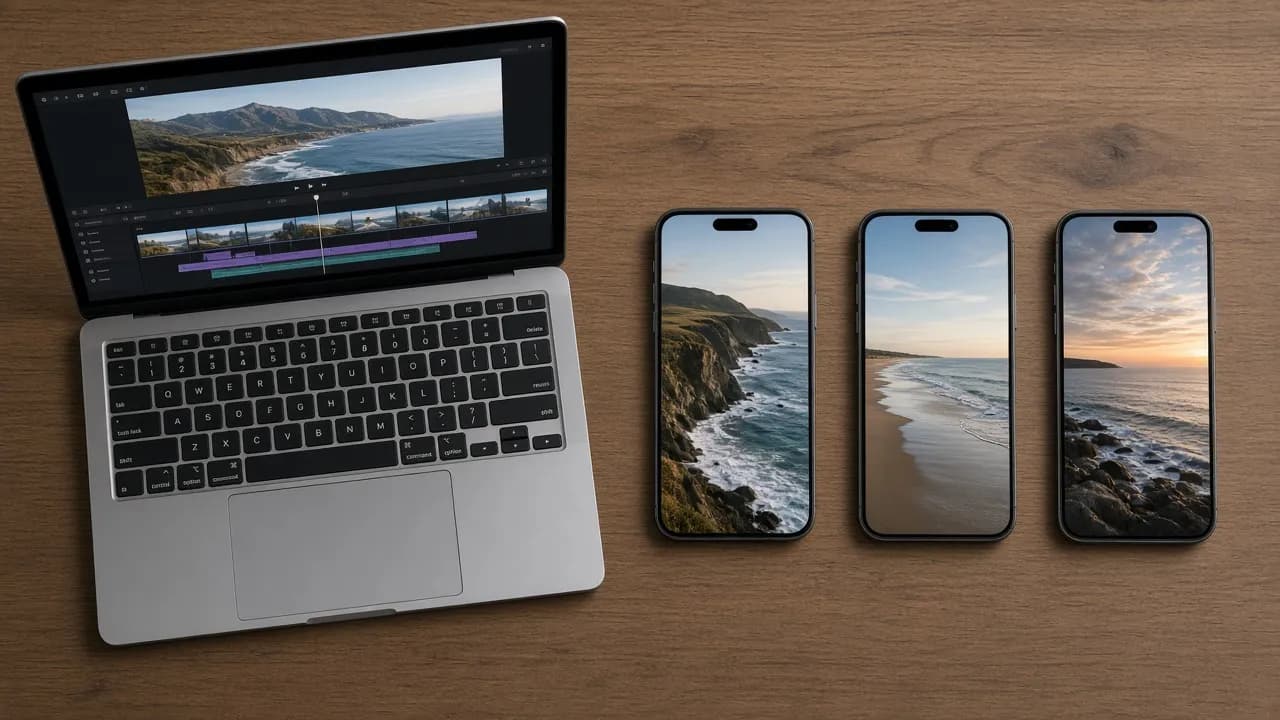
One long YouTube video usually holds several Shorts. The trick is cutting pieces that make sense to someone who has never seen the full video. This is the workflow, from picking moments to linking each Short back to the original.
Know What Counts as a Short
YouTube treats an upload as a Short when it is up to three minutes long and has a square or vertical aspect ratio. That three-minute limit applies to videos uploaded on or after October 15, 2024; older uploads stay categorized as long-form (YouTube Help). From a computer, you upload a Short the normal way in YouTube Studio and can select up to 15 short files at once (YouTube Help).
Most clips you cut will be well under that. The limit mostly tells you that a longer explainer segment can still count as a Short.
Find Moments That Stand on Their Own
Choosing what to cut takes the most thought. Look for moments with a clear beginning and end, like one step from a tutorial, a direct answer to a question, or a quick demonstration.
YouTube's own advice for long-form creators moving to Shorts is to make each Short enjoyable on its own, even when it also promotes the longer video (YouTube Blog).
A fast way to find these is to read instead of scrub. Pull the transcript of your video and highlight lines that make sense without the sentence before them. If your video already has chapters with timestamps, each chapter is a natural place to look for one strong moment.
Trim to a Clean First Line
Start each Short on the line that states the point, not on the setup. If the moment begins with "So, as I mentioned earlier," cut that. The opening seconds should tell the viewer what they're about to get.
End on the payoff. If a Short stops mid-thought, it feels like an ad. If it finishes the idea, viewers are more likely to want the rest.
Reframe for Vertical Without Losing the Subject
Long-form footage is usually 16:9, and Shorts are vertical. When you crop, keep the speaker's face and any on-screen demo inside the frame. If a moment depends on a wide screen recording or on-screen text, it may not survive a 9:16 crop; our guide to YouTube clip formats covers when square or widescreen is the better choice.
Add Captions and a Clear Title
Many viewers watch Shorts without sound, so YouTube recommends captions and text overlays to highlight key points (YouTube Blog). Keep the caption lines short and place them where they won't cover the speaker's face.
Give each Short its own title that matches the single idea in the clip, not the title of the full video.
Link Every Short Back to the Full Video
URLs in Shorts descriptions and Shorts comments are not clickable, so pasting the long video's link there won't send anyone anywhere (YouTube Help).
Use the Related Video setting instead. In YouTube Studio, open Content, click the Short, choose a Related Video from your channel, and save. Viewers then see a clickable link below your channel handle. The linked video has to be public or unlisted, and the feature needs advanced feature access (YouTube Help).
Make the link worth clicking. YouTube suggests matching the viewer's intent, so a quick tip should link to the full tutorial, and the long video should get to the promised topic right away instead of opening with slow intros (YouTube Blog).
Use YouTube Studio's Built-In Clip Tool
If you want to stay inside YouTube, Studio has a Clips and Shorts tool. Open the long video in Content, select Clips and Shorts, choose Short, then pick the segment by selecting text in the transcript or by setting timestamps. In some countries and languages, it also offers AI-suggested moments. Where available, it adds auto-captions, and the source video is added as the related video automatically unless the Short is private, unlisted, or made for kids. YouTube also says you won't be penalized for using your own content in a clip or Short (YouTube Help).
Cut Several Shorts at Once With Repurpose AI
When you want a batch of Shorts from one video, YouTube to Shorts does the finding and rendering for you. Paste a YouTube link or upload a video file, and it reads the video, ranks the moments most likely to work as Shorts, writes a hook and captions for each, and renders vertical 9:16 MP4 clips you can download. You can also export timelines to Final Cut Pro or Premiere Pro if you want to finish the edit yourself.
It needs a Google sign-in. New accounts start with 5 free credits; finding Shorts uses 1 credit, and each clip you render uses 1 more. See pricing for plans. Review every clip before you post it, and fix any start or end point that cuts off a thought.
Need square or widescreen versions for feeds instead? YouTube to Video Clips renders 1:1 and 16:9 clips for X, Instagram, and Facebook.
Check What Worked
After a week or two, open YouTube Analytics and compare your Shorts. YouTube encourages creators to track Shorts performance and try different formats (YouTube Blog). Note which type of moment (a tip, an opinion, a demo) held up best, and look for more of that type in your next long video.
A Quick Check Before You Post
Watch each Short once with the sound off, as if you'd never seen the long video. If you can't tell what it's about from the captions and the first line, trim it again or pick a different moment.