Blog7 min read
How to Write YouTube Descriptions That Get Clicks
How to write a YouTube description: what shows before "Show more", where keywords go, clickable links, hashtag limits, and a template you can reuse.
- YouTube Descriptions
- YouTube SEO
- Repurpose AI
- Guides
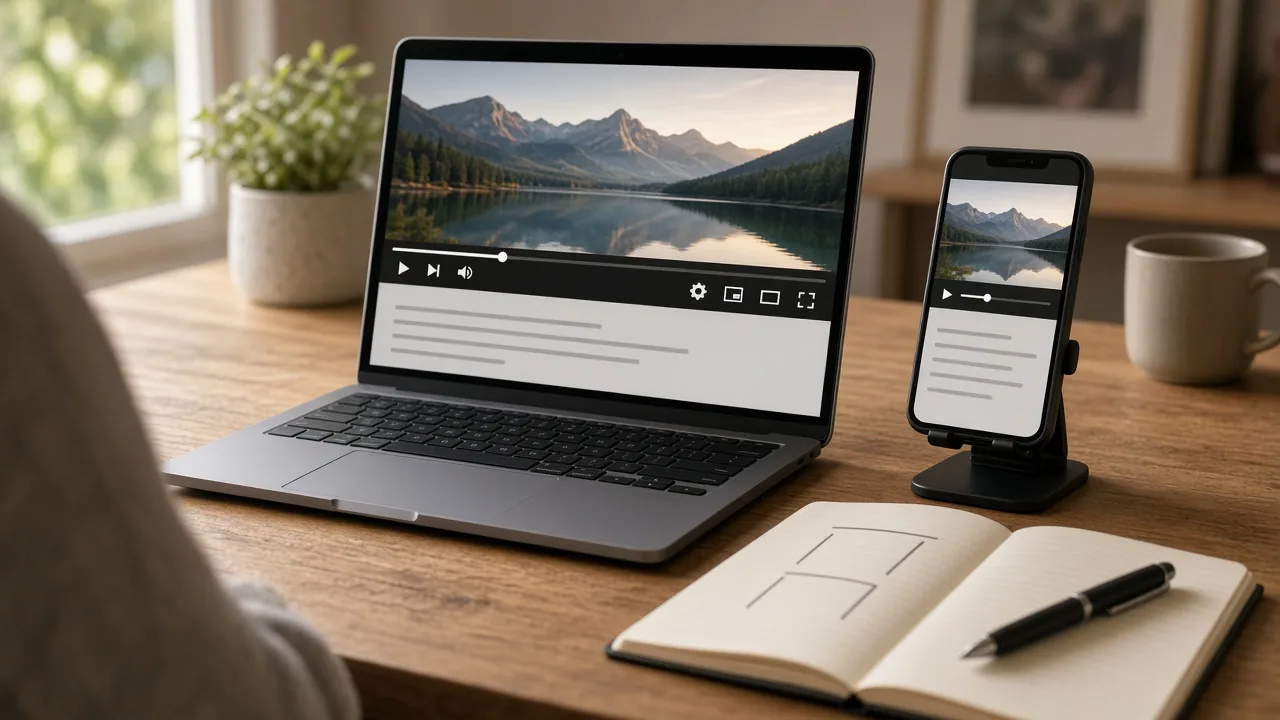
A YouTube description has a few lines that show before "Show more" and a longer section that only appears when someone expands it. Both parts deserve more care than a quick paste of links.
This post goes deep on the description alone. If you want the title, description, and thumbnail as one package, start with How to Package One YouTube Video. If you only need the timestamp list, see How to Add YouTube Chapters With Timestamps.
The Two Parts of Every Description
YouTube's Tips for video descriptions splits the description into two parts: what viewers see before they click "Show more" on desktop (or "more" on mobile), and what they see after. The same page suggests using the first few lines to describe the video, "because it's what viewers will see first."
So the top is written for someone deciding whether to watch, and the bottom for someone who has already decided and wants the links, credits, and chapters.
The hard limit is 5,000 characters, and descriptions cannot include invalid characters (Edit video settings). The Help pages give that maximum and no recommended length, so write as much as the video needs.
Write the First Lines for a Stranger
Imagine a stranger reads only the opening lines. They should come away knowing what the video covers and who it is for. This order gets you there:
- Say what the video is in one plain sentence that names the topic or the outcome. "A step-by-step walkthrough of setting up a home studio on a small budget" beats "Hey guys, welcome back!"
- Add one sentence on who it helps or what they get: "Good for first-time creators who film in a spare room."
- Stop there. Links, sponsor lines, and social handles go below the fold.
Avoid repeating the title word for word. The title has made the promise, and the first lines can add the next useful detail.
Then look at the result where viewers will see it. The tips page recommends checking how the description appears in YouTube search, on the watch page, and on mobile devices to make sure the most important information shows up where you want it.
Put Keywords Where They Belong
YouTube's tips page says search terms are matched with the video and the text in the description. Its advice is to identify "1-2 main words" that describe the video and feature them prominently in both the description and the title. YouTube's How YouTube search works page lists the description among the things it looks at to estimate relevance, along with the title, tags, and the video content.
To find those words, YouTube points to two places:
- The Research tab in YouTube Analytics, plus Google Ads Keyword Planner, for popular keywords and their synonyms.
- The "How viewers find your videos" report in YouTube Analytics, which shows the search terms people already used to find your content. If a common term is missing from the description, consider adding it where it reads naturally.
Write them into normal sentences. The tags help page says that adding excessive tags to your video description is against its policies on spam, deceptive practices, and scams. A block of keywords pasted at the bottom of the description falls into that category.
Each video also needs its own description. The tips page says a unique description makes a video easier to find and helps it stand out from similar videos.
Links, Hashtags, and Formatting
Links
URLs in long-form video descriptions are clickable, but only after you enable your channel's access to advanced features. URLs in Shorts descriptions are not clickable (Sharing links with your audiences). Every link must follow YouTube's External links policy. If you use affiliate links, say so in the description.
Hashtags
You can add hashtags in the title or description. Out of all the hashtags in the description, up to three that YouTube considers most engaging appear by the video title. If a video has more than 60 hashtags, YouTube ignores every one of them, and over-tagging may get the video removed from search (Find playlists and videos using hashtags). Since no more than three show by the title, a few relevant hashtags are enough.
Formatting
The description is plain text, but YouTube lets you bold, italicize, or strikethrough text, and you can start a line with "*", "+", or "-" followed by a space to make a bullet list. On a computer the formatting options sit at the bottom of the description box (Tips for video descriptions).
The Lower Half: Chapters, Credits, and Defaults
Below the fold goes the reference material.
- Chapters: timestamps in the description turn into chapters when the list follows YouTube's rules (first stamp at 00:00, at least three, each at least 10 seconds). The full walkthrough is in our chapters guide.
- Corrections: to fix a mistake, Edit video settings says to add a "Correction:" or "Corrections:" block after any chapters, with a timestamp and explanation on a separate line.
- Credits and attribution: the tips page suggests calling out collaborators and channels that helped you. For video attributions, the Edit video settings page gives the format [Channel Name] [Video Title] [Video ID].
- Playlists: the tips page also suggests linking to playlists of related videos, which gives viewers somewhere to go next on your channel.
- Default description: YouTube recommends filling in the default description field so standard channel information appears on every upload. Keep it short so it doesn't crowd the lines written for this video.
A Description Template You Can Reuse
Here is a template that follows the structure above. Replace the brackets with your details.
[One sentence: what this video shows or teaches.]
[One sentence: who it is for or what they will be able to do.]

In this video:
- [Main point 1]
- [Main point 2]
- [Main point 3]

00:00 [Intro]
[mm:ss] [Section]
[mm:ss] [Section]

Resources mentioned:
[Link 1, with a short label]
[Link 2, with a short label]

[Credits / collaborators]
[Affiliate or sponsor disclosure, if any]

#[hashtag1] #[hashtag2]
[Default channel info]
The bullets and the chapter list overlap a little on purpose. Bullets tell a reader what they will learn. Chapters let a viewer jump to it.
Using a YouTube Description Generator
Repurpose AI's YouTube Description Generator works from text you give it. You enter the video topic or paste key details, and it writes a keyword-rich, SEO-structured description with an opening line and a call to action, ready to paste into YouTube Studio. You start with 5 free credits and no credit card, and each generation draws from the same shared credit balance as the other Repurpose AI tools (pricing).
To get a useful draft out of it:
- Give it specifics. Paste the one-sentence promise, the audience, and the main points. If you are not sure what the main points are for a long video, the YouTube Video Summarizer condenses a pasted link into key points, and the YouTube Transcript Generator gives you the exact lines.
- Rewrite the opening if needed. Make sure the first two lines say what the video is in your words. Cut any claim the video does not back up.
- Fill in what the tool leaves out. The live page does not claim to write chapter timestamps, so add your own list. Add your real links, credits, and disclosures.
- Keep the title in step. If you also need a title, the YouTube Title Generator works from the same topic, so the two pieces start from one promise.
Starting from what the video already says and reshaping it for a new slot is what repurpose AI means in practice. For the wider workflow, see How to Repurpose Content With AI and What Is Repurpose AI?.
Mistakes That Waste the Description
- Opening with "Hey guys" or a list of social links, so the preview says nothing about the video.
- Copying the same description across every video. YouTube says unique descriptions help.
- Pasting a block of keywords or tags. YouTube treats excessive tags in the description as spam.
- Adding dozens of hashtags. Past 60, YouTube ignores all of them.
- Expecting links in a Shorts description to be clickable.
- Promising something in the description that the video does not deliver. YouTube's Spam Policy lists maliciously misleading descriptions under malicious clickbait.
Final Check Before You Save
Read the first two lines on a phone. Do they say what the video is? Are the main keywords there, in normal sentences? Are the links below the fold, labeled, and disclosed? A few relevant hashtags, not dozens? Under 5,000 characters?
If all of that checks out, save it in Studio.
To get a first draft to edit, try the YouTube Description Generator with your 5 free credits, or browse every free tool on the tools page.