Blog6 min read
How to Repurpose Content With AI: A Step-by-Step Workflow
A clear AI content-repurposing workflow: pick a video, get the transcript, cut Shorts first, write social posts, expand to a blog, then package the original. Links to every Repurpose AI how-to.
- Content Repurposing
- Repurpose AI
- YouTube Repurposing
- Guides

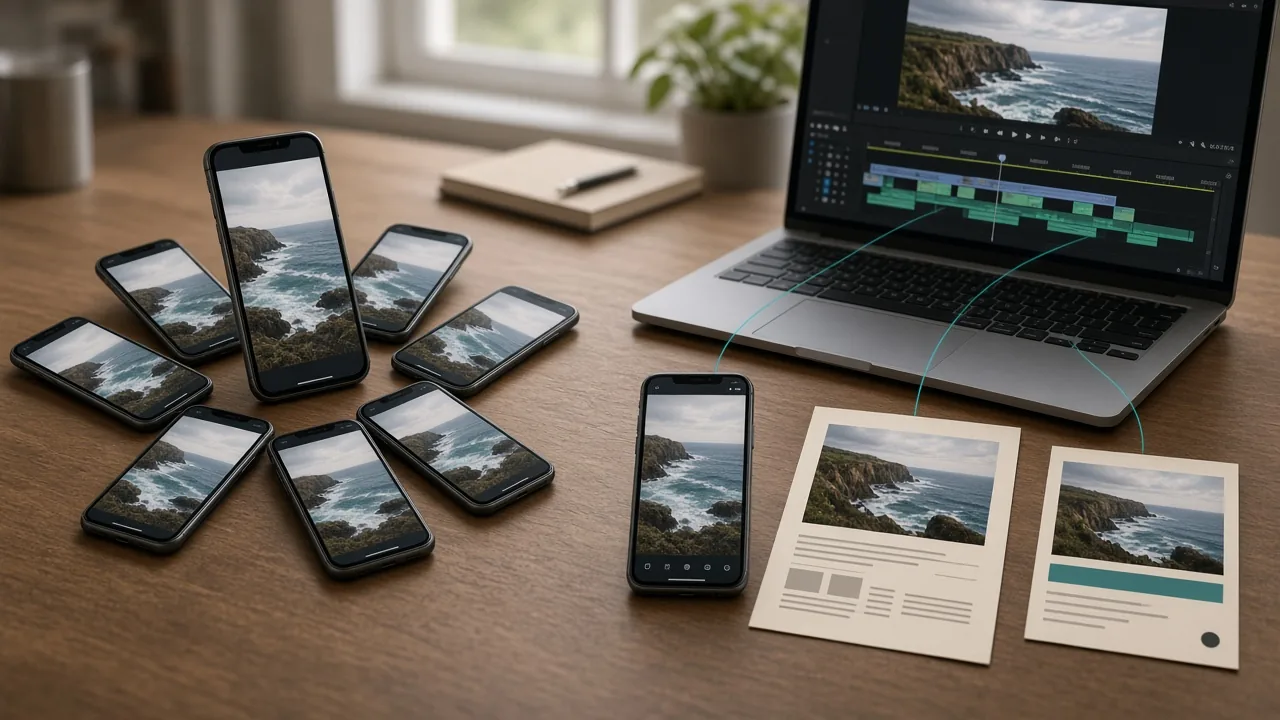
One finished YouTube video can become Shorts, social posts, a blog article, and packaging for the original. The tools help, but the order you make those assets in is what keeps the work from looping back on itself.
For what "repurpose AI" means as a practice and as the product, see What Is Repurpose AI?. This post owns the step-by-step workflow.
Why One Video Should Become Many Pieces
You already did the hard work when you researched, recorded, and edited the video. Content Marketing Institute's guidance on remixing content says to change the packaging, not the message, and that one strong idea can become five to 10 pieces when you plan the formats (Content Marketing Institute). HubSpot's multi-channel advice starts the same way: build a pillar asset with enough depth and modularity to yield 5 to 10+ derivatives (HubSpot).
AI speeds the first draft of that reshaping. Repurpose AI's homepage puts it as "One video. More everywhere." You still decide what ships.
Why This Order Works
Cut clips while the video is still fresh, because you remember how each moment lands. Write social posts after you know the best moments, so the same hooks carry into the copy. Package the original last, so the title, description, and chapters get the lift from everything you learned while cutting and rewriting.
Skip that order and you usually rewrite posts after finding a better clip, or lock a title before you know which angle works.
Step 1: Pick a Source Video Worth Repurposing
Choose a video that already answers a clear question, teaches a process, or tells a story people can use without watching the whole thing. Interviews, explainers, and episodes work well. Thin trailers and heavily visual montages with little speech usually do not.
In Repurpose AI you paste a YouTube link or upload a video. The homepage FAQ notes that videos without available captions may fail to transcribe, so pick a source with usable audio and captions.
Step 2: Get the Transcript and a Short Summary
Repurposing starts from the words. Pull a full transcript with the YouTube Transcript Generator, then a shorter overview with the YouTube Video Summarizer. YouTube Transcript vs Summary covers when you need the full text versus a planning summary.
Skim both before you generate anything else. Mark the moments and lines you already want to keep.
Step 3: Find and Cut Short Clips First
Start with video outputs while the source is still in your head. Use YouTube to Shorts for vertical 9:16 clips aimed at YouTube Shorts and Instagram Reels, and YouTube to Video Clips for square 1:1 Instagram feed video and widescreen 16:9 X video. YouTube Help says a Short can be up to 3 minutes with a square or vertical aspect ratio (YouTube Help).
How to Turn a Long YouTube Video Into Shorts walks through picking moments that stand alone. Which YouTube Clip Format to Use: 9:16, 1:1, or 16:9 covers sizing for each feed.
On credits: finding Shorts from one video and rendering one clip uses 2 credits (1 to find, 1 to render). Each extra render costs 1 more. Review start and end times before you spend those renders.
Step 4: Write Social Posts From the Same Ideas
Once you know the strongest moments, turn the same ideas into written posts. Repurpose AI lists these destinations on the homepage: X Thread, LinkedIn Post, Facebook Post, Instagram Caption, Reddit Post, and Quora Answer.
Each platform has its own guide:
- How to Turn a YouTube Video Into an X Thread
- How to Turn a YouTube Video Into a LinkedIn Post
- How to Turn a YouTube Video Into an Instagram Caption
- How to Turn a YouTube Video Into a Facebook Post
- How to Turn a YouTube Video Into a Reddit Post
- How to Turn a YouTube Video Into a Quora Answer
Each selected platform uses 1 credit. Turn on Keep Your Voice if you want drafts that follow how you talk in the video, then edit until the line sounds like something you would actually post.
Step 5: Expand Into Long-Form
After the short pieces exist, expand the same outline into a blog post or website copy. How to Turn a YouTube Video Into a Blog Post covers structure, headings, and what to cut. Long-form is where search often finds you, so spend extra time on the opening and on sections that stand alone without the video.
Step 6: Package the Original Video
Packaging comes last on purpose. By now you know which hooks and chapter breaks actually work. Use the YouTube Title Generator, YouTube Description Generator, and YouTube Thumbnail Generator, then add chapters. See How to Package One YouTube Video and How to Add YouTube Chapters With Timestamps.
If you are planning the next recording, the Script Generator and free Online Teleprompter help you build the next source with repurposing in mind. The full set lives on the tools page.
Step 7: Review for Voice and Platform Rules, Then Export
Read every draft out loud. Fix lines that are accurate but do not sound like you. Check Reddit and Quora rules before you post there. Preview clips with sound off so you can tell whether the captions carry the point.
Then export. Free users can copy posts and download rendered clips. Publishing, scheduling, and the content calendar are Pro-only beta features powered by Postiz for YouTube, Instagram, Facebook, LinkedIn, and X. Details and current numbers are on the pricing page.
What Google Says About AI-Assisted Content
Google's guidance is that it rewards quality "however it is produced." In its post on AI-generated content, Google says "appropriate use of AI or automation is not against our guidelines," and that using automation "with the primary purpose of manipulating ranking in search results is a violation of our spam policies" (Google Search Central Blog).
Google's helpful content page adds a clear warning. Its quality raters treat "using generative AI to produce large amounts of text without manual oversight or curation" as little to no effort, and it asks creators to think in terms of Who, How, and Why (Google Search Central). Starting from your own video and editing the drafts is how you stay on the helpful side of that line.
Try the Workflow
Pick one video you are proud of. Run the order above: transcript, clips, a couple of social posts, then a blog or packaging pass if you have credits left. You can try the full workflow on the Repurpose AI homepage with 5 free credits, or compare plans on pricing.