Blog5 min read
How to Repurpose Video With AI: Long Video to Shorts, Clips, and Posts
Repurpose one long video with AI: vertical Shorts and Reels, square and widescreen feed clips, and posts from the same source. Platform limits and checks included.
- Video Repurposing
- Repurpose AI
- YouTube Shorts
- Guides
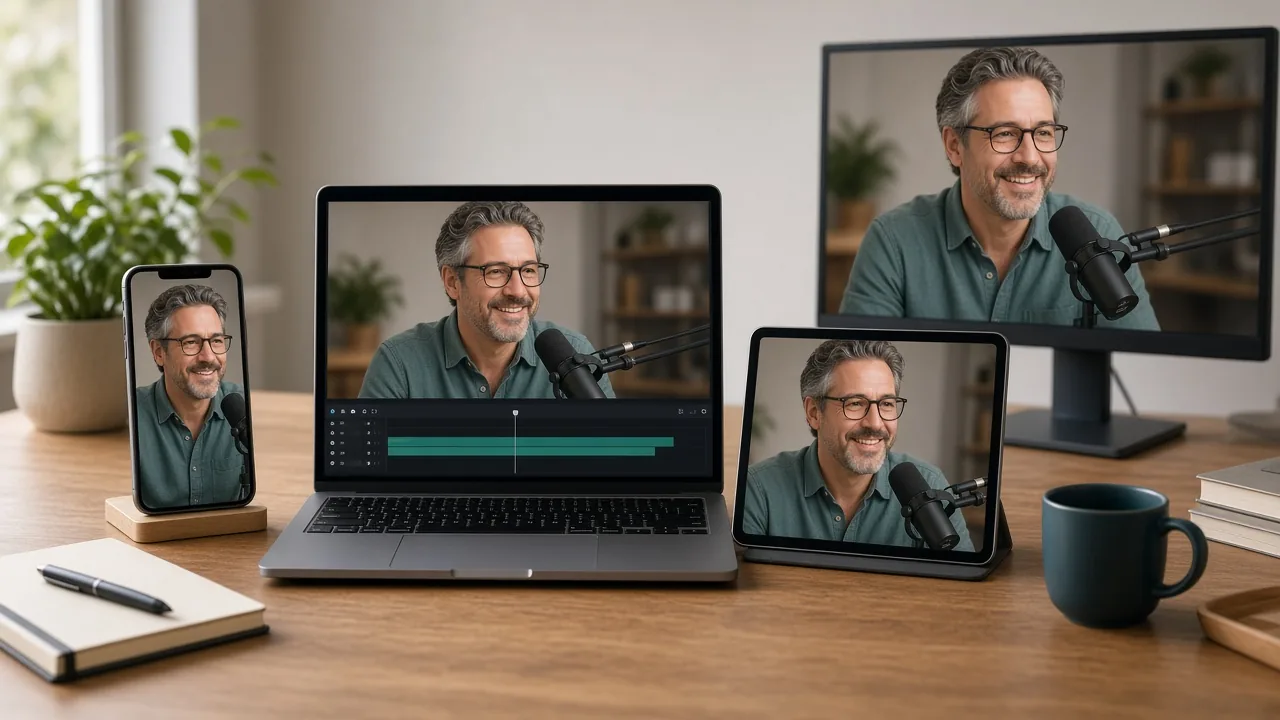
A long video is the richest thing you can feed a repurposing tool. One interview, explainer, or episode can turn into vertical Shorts, square and widescreen feed clips, and written posts. This post covers the video side of "repurpose ai": what you can make, where each piece goes, and what to check before it ships. For the full order of operations across clips, posts, and packaging, see How to Repurpose Content With AI.
What You Can Make From One Long Video
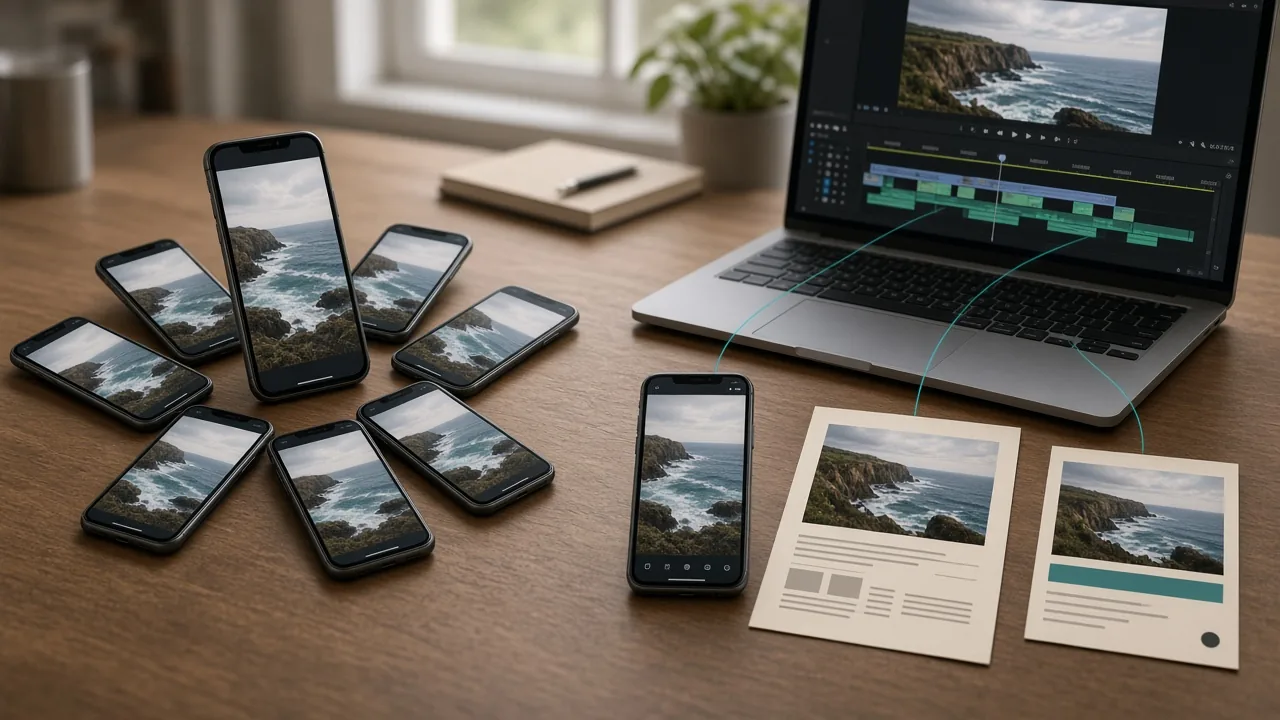
Repurpose AI's homepage lists these video outputs from one source:
| Output | Shape | Where it goes | Tool |
|---|---|---|---|
| YouTube Shorts | Vertical 9:16 | Shorts | YouTube to Shorts |
| Instagram Reels | Vertical 9:16 | Reels (and TikTok) | YouTube to Shorts |
| Instagram Video | Square 1:1 | Instagram feed | YouTube to Video Clips |
| X Video | Widescreen 16:9 | X (and Facebook) | YouTube to Video Clips |
Every clip renders as a downloadable MP4 with captions, according to the YouTube to Video Clips page. If you're unsure which shape a clip needs, Which YouTube Clip Format to Use covers 9:16, 1:1, and 16:9 in detail.
Start With a Video That Has Clear Speech
AI repurposing reads the words first. You paste a YouTube link or upload a video, and the tool works from the transcript. Repurpose AI's FAQ notes that videos without available captions may fail to transcribe, so pick a source with clean audio and captions. Talking-head videos, interviews, and tutorials work best. A music montage with little speech gives the AI almost nothing to work with.
Let AI Find the Moments, Then Judge Them Yourself
On the YouTube to Shorts page, the AI "reads the video, ranks the most Short-worthy moments, writes a hook and captions for each, and renders vertical 9:16 MP4 clips." Treat that ranking as a shortlist. Before you render, check each suggestion:
- Does it make sense to someone who never saw the full video?
- Does the first line land without the sentence before it?
- Does it end on a complete thought, not mid-word?
You can fine-tune start and end times before rendering. How to Turn a Long YouTube Video Into Shorts goes deeper on picking moments that stand alone.
YouTube Studio has its own clip tool too. Its help page says AI-powered suggestions are available in select countries and languages, and that "you won't be penalized for using your content in a video clip or Short" (YouTube Help).
Match Length and Shape to Each Platform
Limits differ by platform and they change, so check them just before you post.
On YouTube, a square or vertical video up to three minutes, uploaded on or after October 15, 2024, is treated as a Short. A Short over one minute with an active copyright claim is blocked globally (YouTube Help). Cut music you don't own from longer clips.
Instagram's Help Center says you can record and edit Reels up to 20 minutes, but "Reels over 3 minutes won't be recommended to new audiences" (Instagram Help).
For X and Facebook, use widescreen or square feed clips and check each platform's help pages for the current length limit on your account type.
Add Hooks and Captions for Silent Viewing
Some people scroll with the sound off, and a clip that only works with audio loses them. Repurpose AI writes a hook and on-video captions for each Short, and its homepage says hooks and captions help "your point come through, even when viewers watch without sound." Read every caption before you render. Names, numbers, and jargon are where speech-to-text slips.
Turn the Same Video Into Posts
The same transcript can feed written posts. From one video you can make an X thread, a LinkedIn post, an Instagram caption, or a blog post. Pair a clip with a post that uses the same hook so the message stays consistent.
Export, Edit Further, or Publish
Download the finished MP4s and upload them yourself, or export timelines to Final Cut Pro or Premiere Pro if you want to keep editing (per the YouTube to Shorts FAQ). On the Pro plan, you can also publish or schedule clips and posts to YouTube, Instagram, Facebook, LinkedIn, and X from Repurpose AI. That feature is in beta and Pro-only, according to the pricing page.
What It Costs in Credits
You start with 5 free credits and no credit card. Finding Shorts from one video uses 1 credit, and each clip you render uses 1 more, so one search plus one clip is 2 credits. Credits are shared across tools and don't reset daily. Repurpose AI Pricing Explained breaks down the paid plans. Prices can change, so check /pricing for the current numbers.
A Quick Check Before You Post
- The clip stands alone without the full video.
- The first line makes sense with no setup.
- Captions are correct, especially names and numbers.
- Shape matches the destination: 9:16, 1:1, or 16:9.
- Length fits the platform's current limit.
- No music or footage you don't have rights to.
Try It on One Video
Pick one long video you already published and paste the link into YouTube to Shorts. Review the suggested moments, render the best two, and see how they do. Your 5 free credits are enough to try it.